
EMA Scan
Your email archive can hold paper too.
EMA Scan brings paper into the archive you already have. Scan at your desk, read the text, fill in the details and send one searchable PDF per document. Use AI if you want to, or leave it out.
Any scanner
WIA and TWAIN scanners, and network scanners that need no driver. No scanner? Import PDFs and pictures.
Read it your way
On-device OCR, Azure Document Intelligence or an AI model that reads images. Or plug in your own engine.
Your keys, your models
Bring your own API keys and your own services. Nothing goes to a service you did not choose.
No per-page licences
EMA Scan has no per-page and no per-language fees, however much paper you scan.
Use cases
Why add paper to the archive
Paper invoices
A stack of supplier invoices goes into the feeder. EMA Scan splits it at separator sheets, finds each invoice number and lets a clerk check it before it is archived.
One step closer to paperless
Digitise the old folders once. They land in the archive that already holds your email, and one search finds both.
Incoming post
Letters and contracts are scanned when they arrive and filed with the rest of the correspondence, signed and searchable.
Already scanned?
Import the PDFs and pictures that a scanner or copier left in a folder, read their text and send them.
Scan
Scan with a saved profile, or import a PDF or a folder of pictures. A batch of a thousand pages is fine.
Clean up
Remove blank pages, split the stack into documents, straighten and tidy the pages.
Read
The text is read on the PC or by the service you chose. Drag words from the page into the fields.
Send
One searchable PDF per document goes to your own mailbox archive, or to one that was delegated to you.
From paper to a searchable record
One window, from the stack on the scanner to the archive.
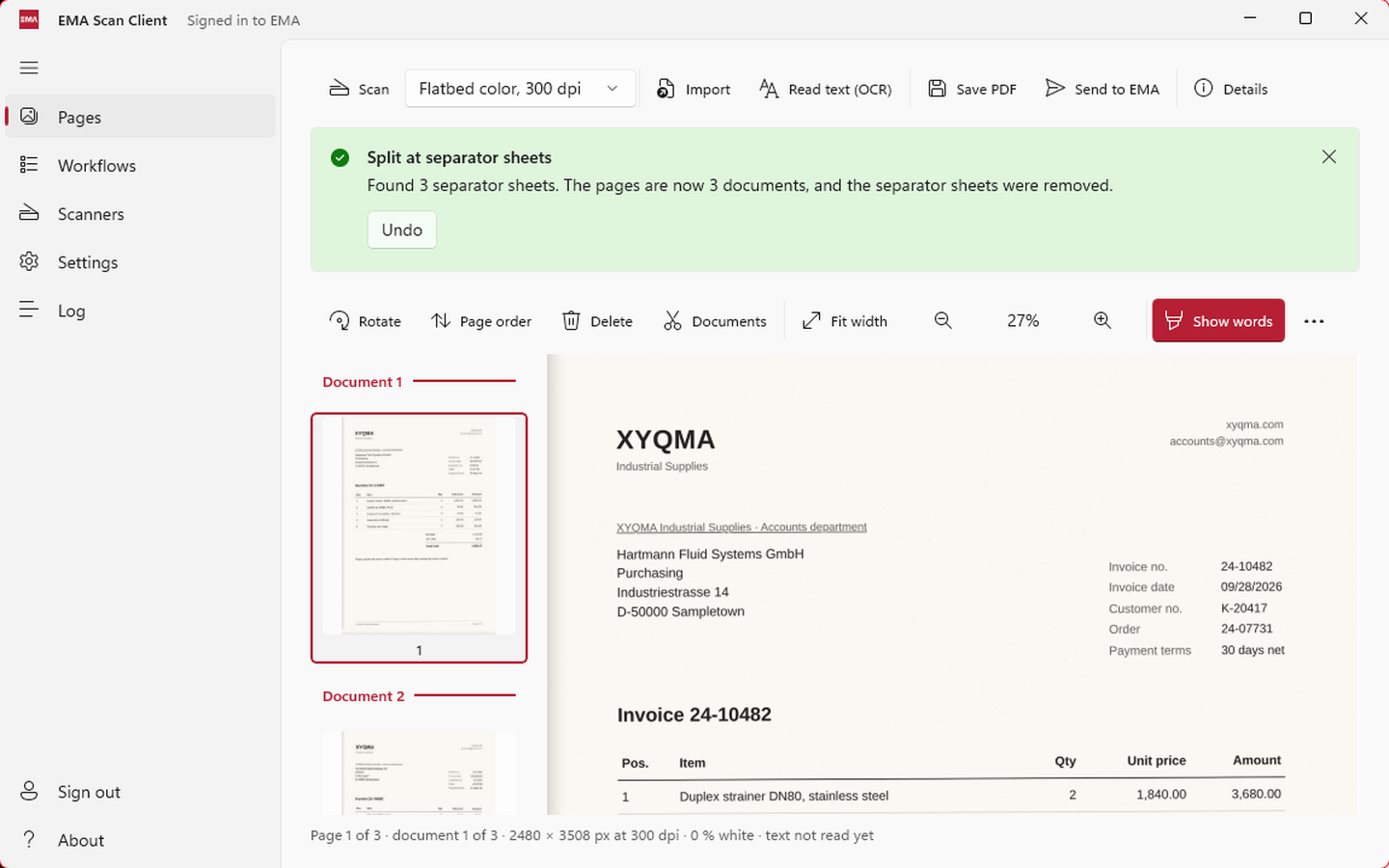
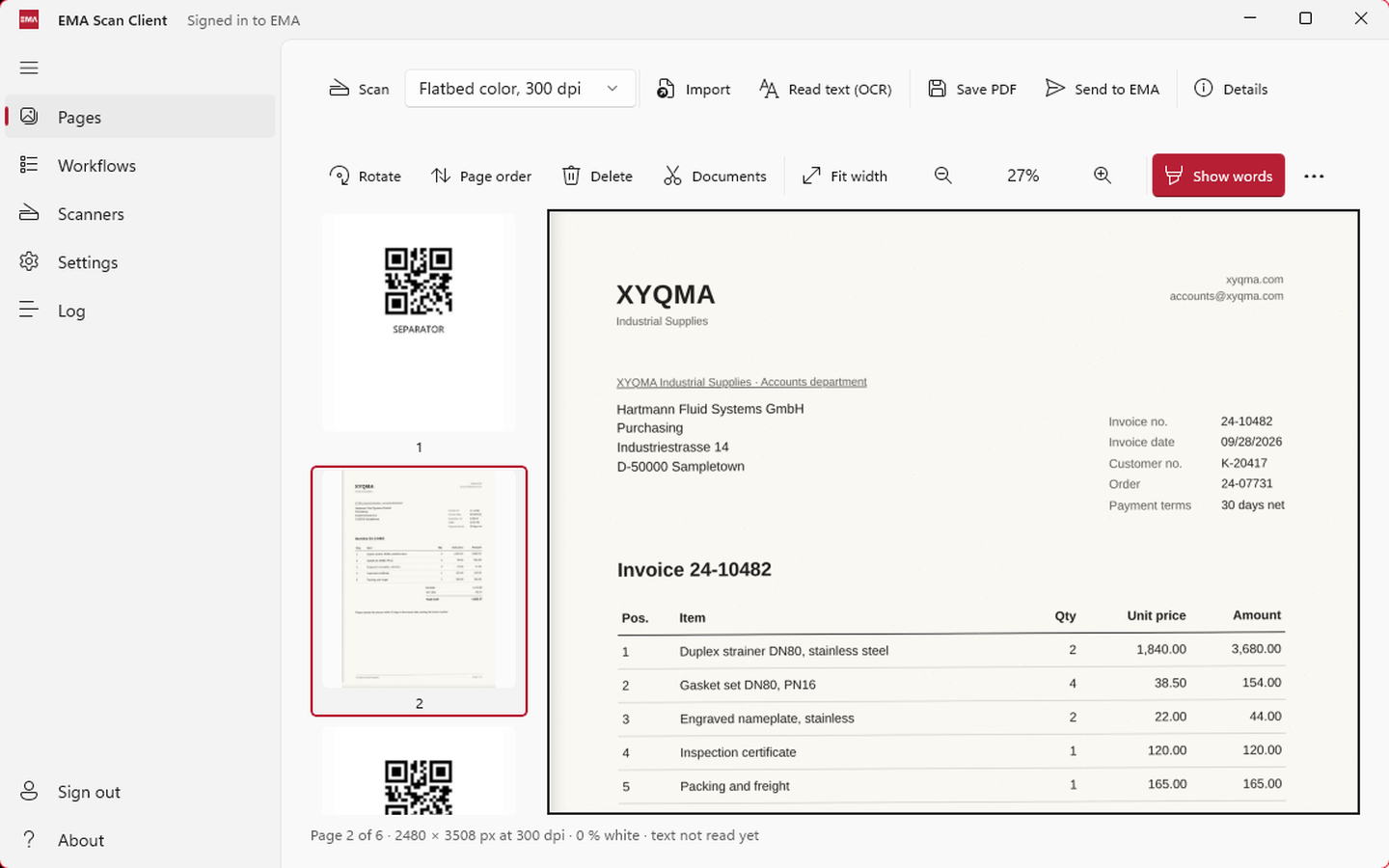
Scan a stack, get documents
Pick a saved scanner profile and scan. Put a separator sheet between the documents, and EMA Scan splits the stack for you.
- Pick a saved profile, a local scanner, or one on the network.
- A separator sheet starts a new document and is removed.
- Every document is read and ready for processing on its own.
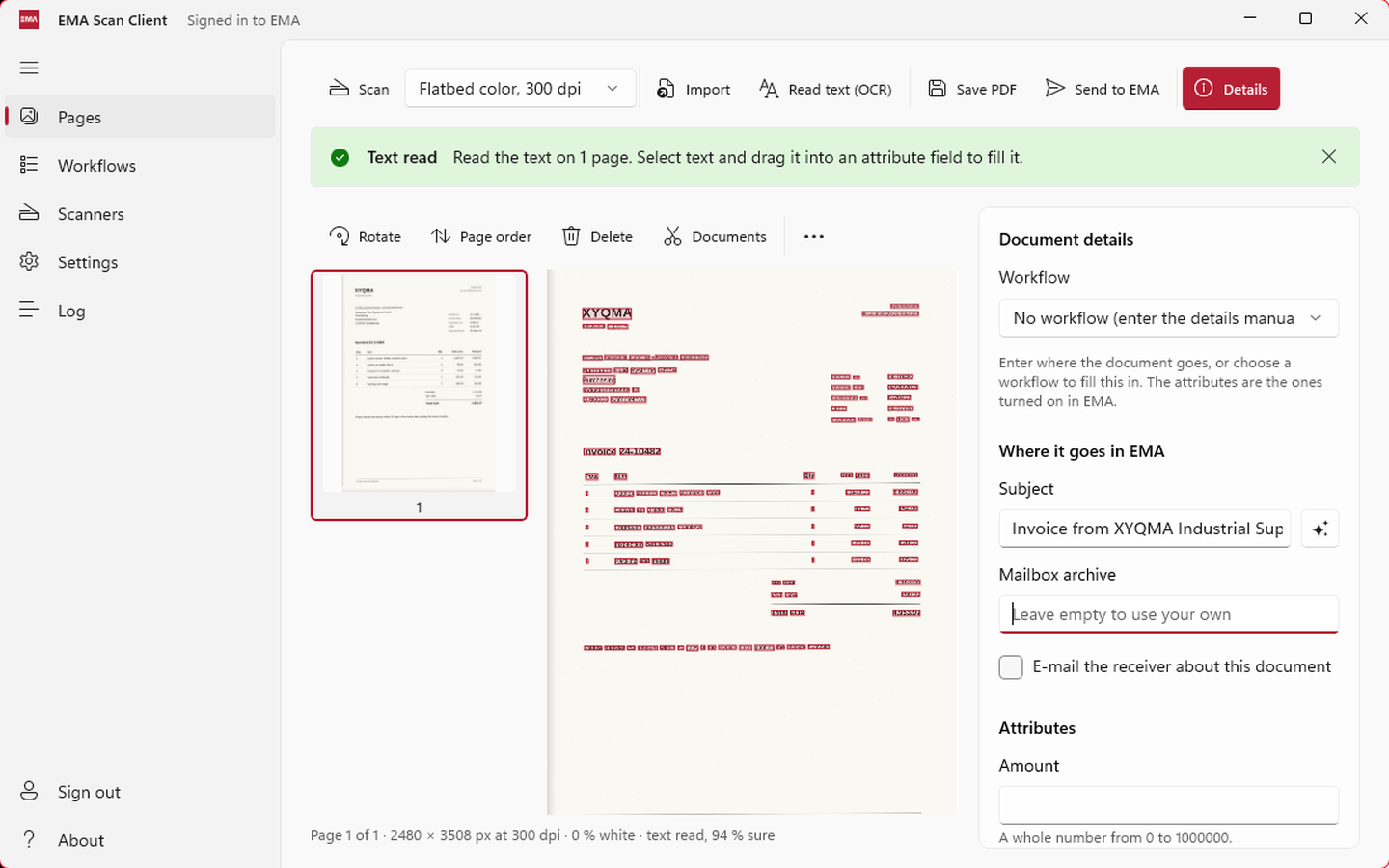
Read the page, fill in the details
EMA Scan reads the text and shows every word it found. Drag words into the fields, let patterns fill them, or have AI fill in the details when you turn it on. Then say where the document goes.
- Fill in the details with AI, when you turn it on.
- Say where it goes: your mailbox archive or one delegated to you.
- Up to 200 customisable attributes help you go beyond the scan.
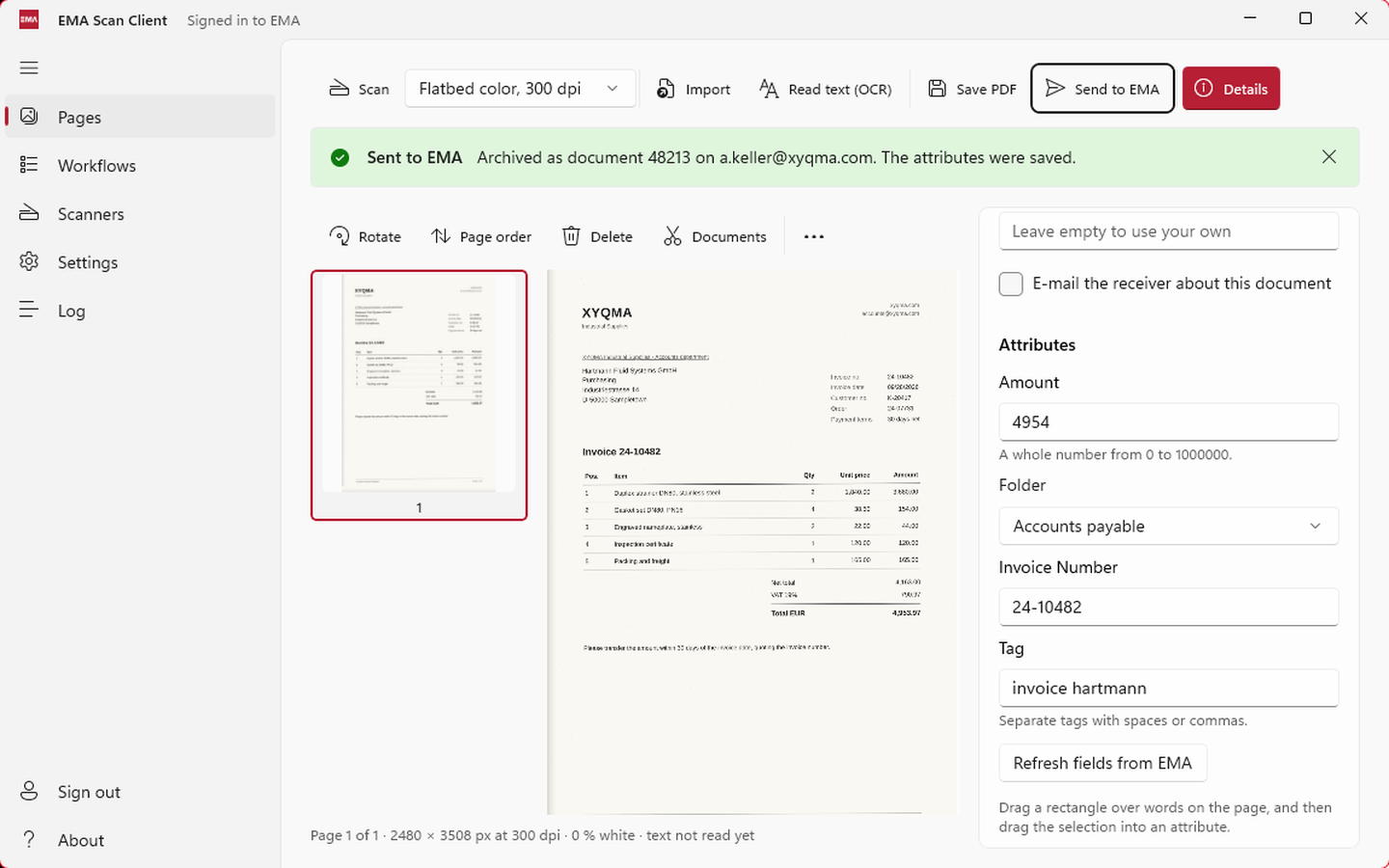
One searchable PDF per document
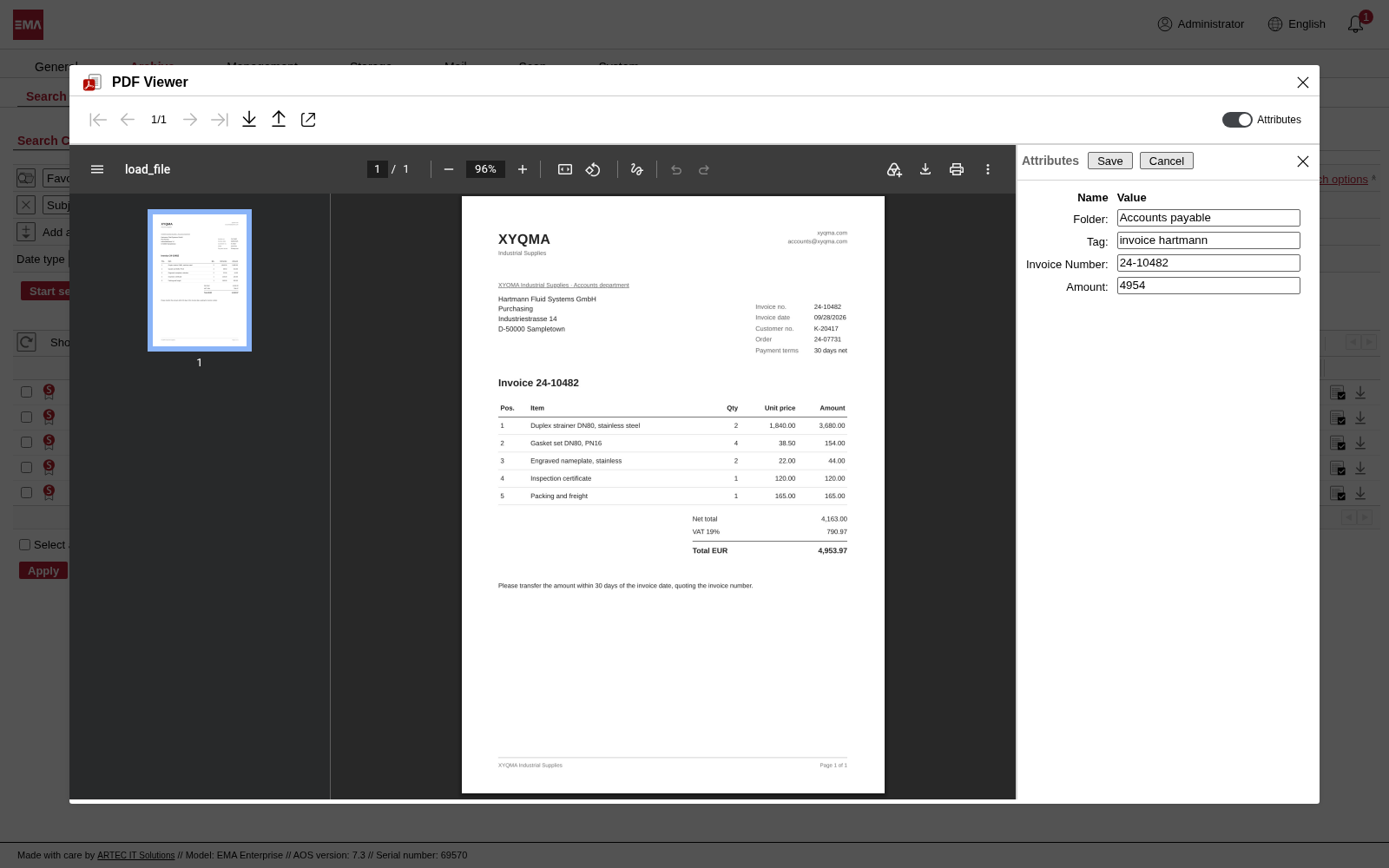
EMA confirms the archived document and saves its attributes with it: here an invoice number, an amount, a folder and tags. The attributes show up in search results, can be searched, and can be corrected later.
- One click puts the document into EMA, with its attributes, and you are ready for the next stack.
- EMA archives and digitally signs the document and stores it securely, so you can show it was never changed.
Scripting
Automate it in Lua
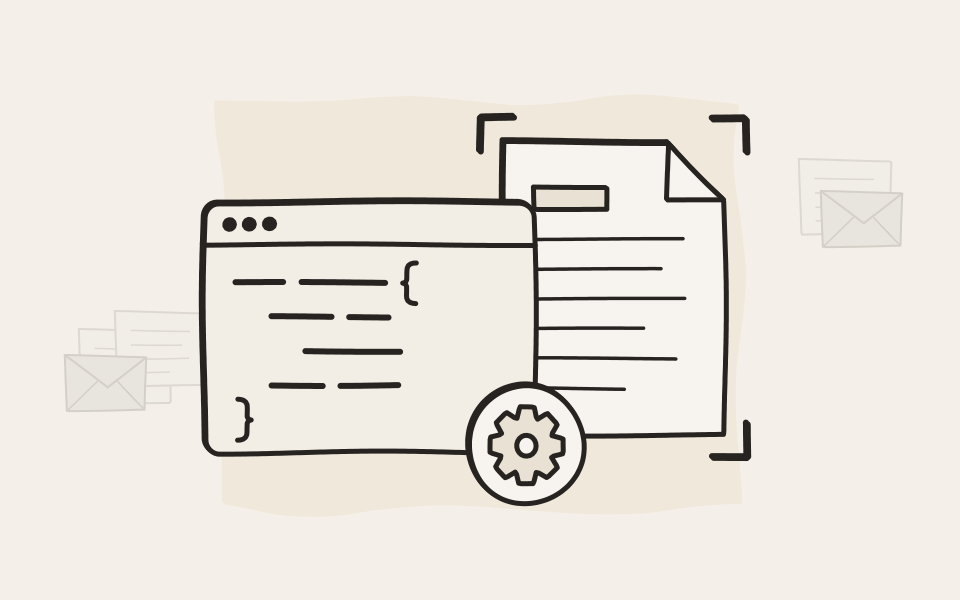
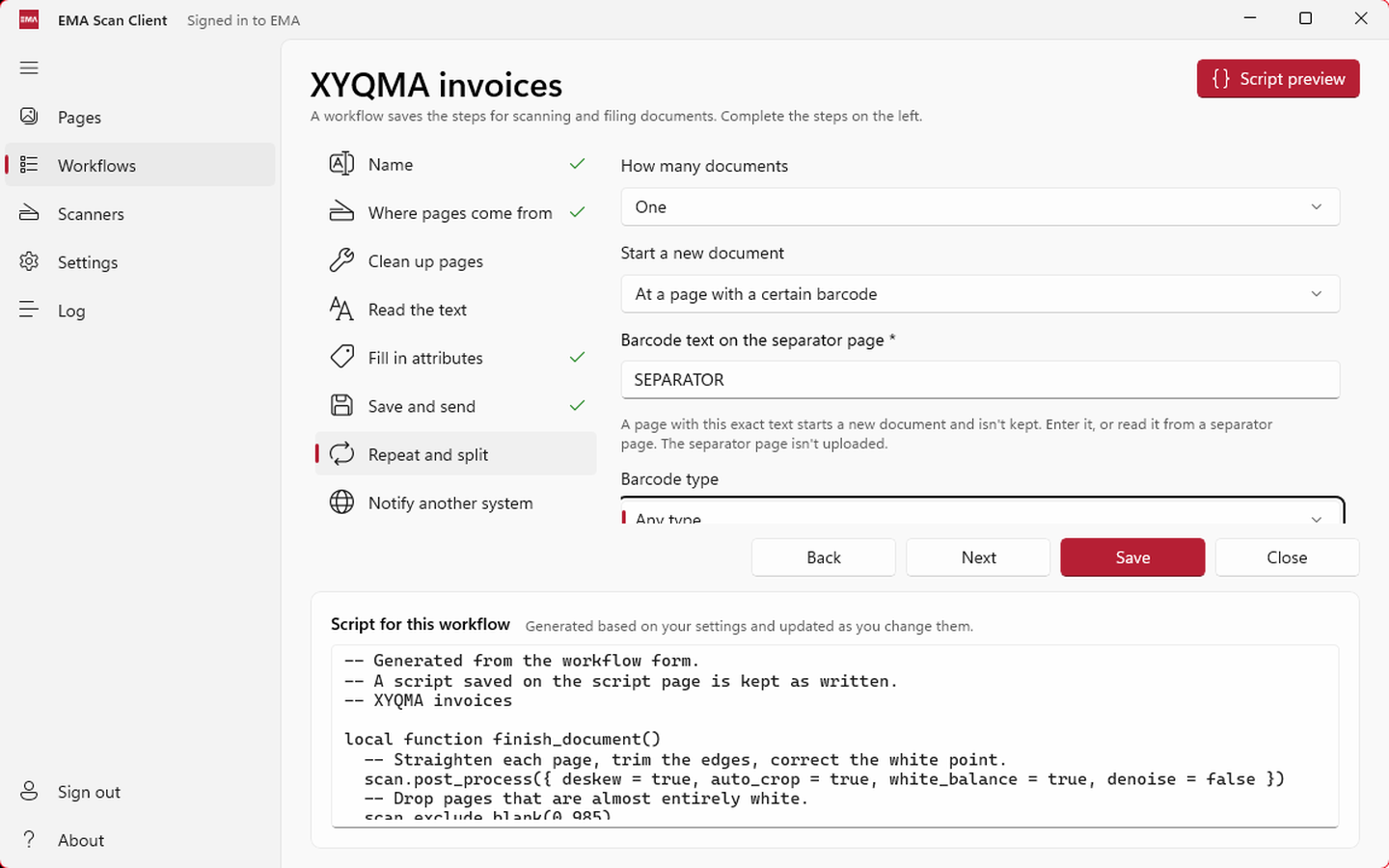
Every workflow is a short Lua script that a wizard writes for you and you can edit. Scripts can add your own buttons to EMA Scan Client, ask the user a question, call web services and use AI. API keys for your own services can be kept as secrets instead of being written into a script. Lua is small and easy to learn. Whatever your process needs beyond the built-in steps, a script can add.
Workflows
Workflows without writing code
A wizard builds a workflow from plain choices: where the pages come from, how to clean them up, which engine reads them, which attributes to fill in and where the result goes. Patterns find values such as an invoice number in the text, and a check before sending stops anything doubtful. The wizard writes the Lua script, and you can open it and change it.
Text recognition
Read the page with the engine you choose
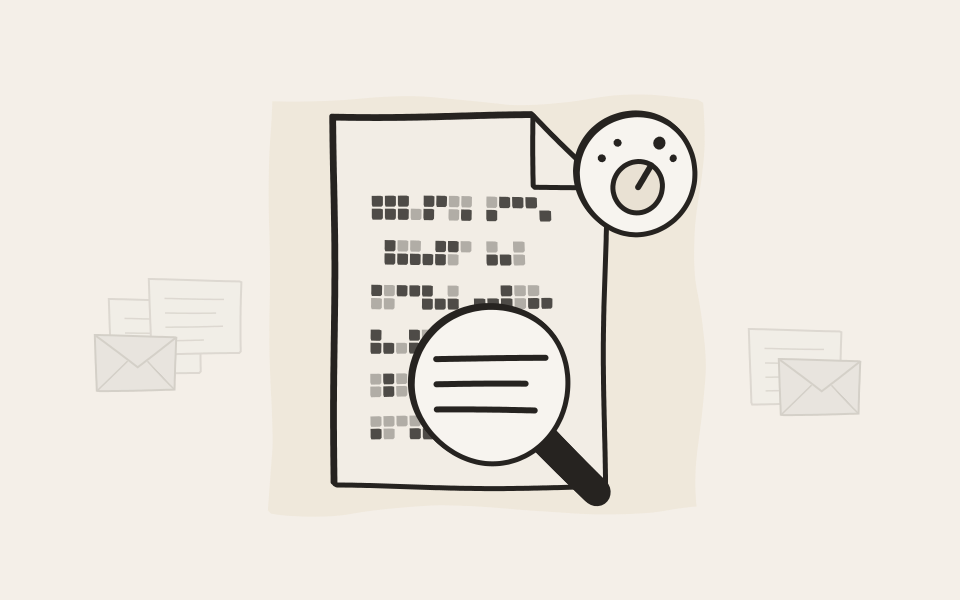
On-device recognition runs on the PC, so page images stay there. Azure Document Intelligence reads business documents and their layout. An AI model that reads images copes with poor scans and mixed languages, and it can be a model on your own network. You decide which engines your users see, and a plug-in lets you add your own.
AI, if you want it
Let AI classify your paper
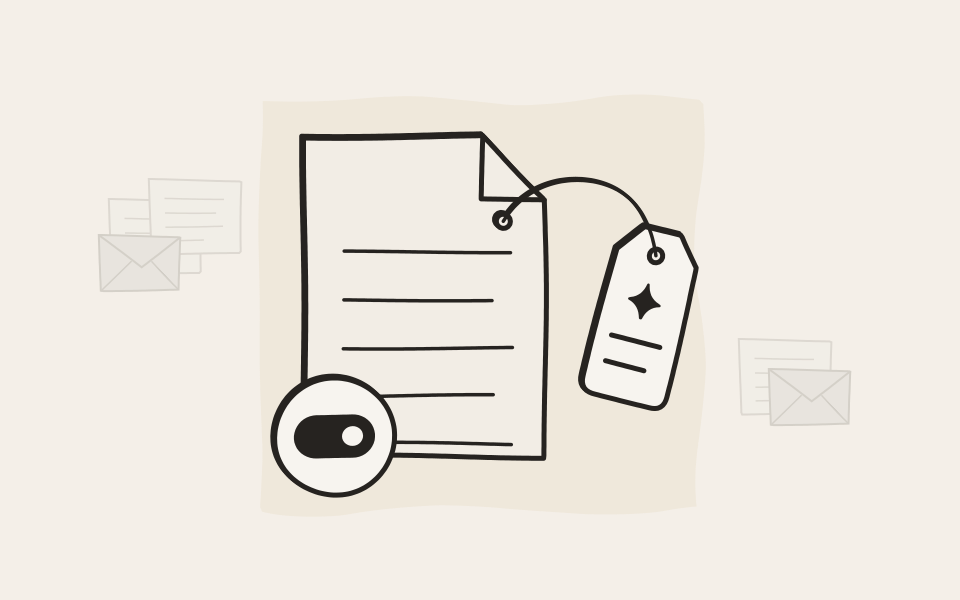
AI can suggest a subject, and with a little Lua it can classify every document, say invoice, contract or letter, and fill in the attributes for you. It runs only when you turn it on, and the text goes straight from the PC to the service you chose, with your own API key, or to a model on your own network. Without AI, everything else works the same.
For administrators
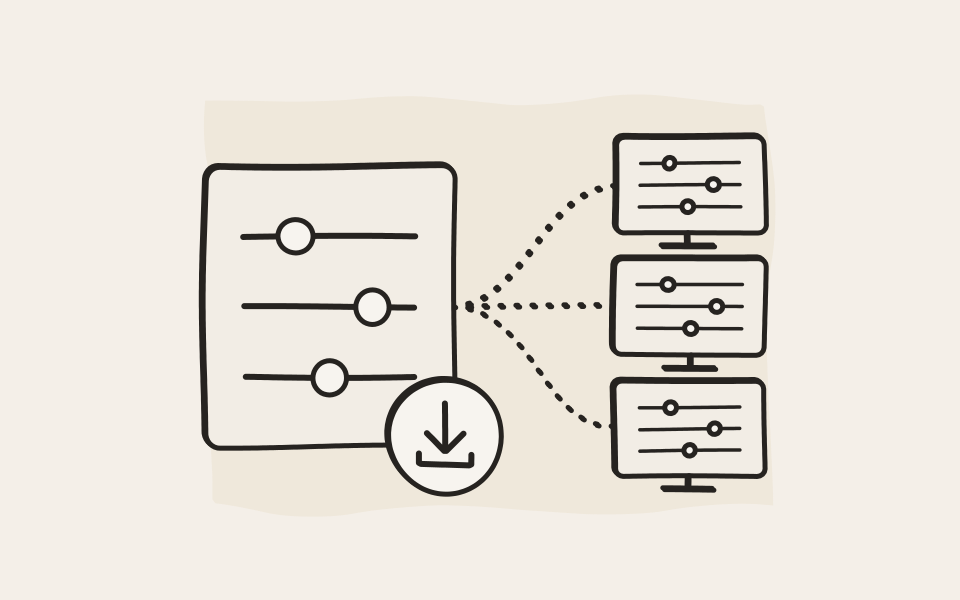
Set it up once, roll it out to everyone
Choose the text recognition, the AI service, the attributes and your custom workflows on one page of the EMA web interface. The installer carries your settings and policies to every PC and can install without prompts. Users sign in through the browser with the sign-in they already use for EMA, single sign-on included, so each scan is filed as that user, in their own mailbox archive or one delegated to them. There is no shared secret to guard and no folder anyone can drop files into.
Digitising your paper files just got a lot less daunting
Put the stack in, get documents out
A separator sheet between the documents is all EMA Scan needs. It splits the stack, drops the sheets and gets every document ready to be read on its own.
One click, one searchable PDF per document
EMA archives and signs each document, stores it securely, and saves its attributes with it: invoice number, amount, folder and tags. Nothing has to be exported or copied.
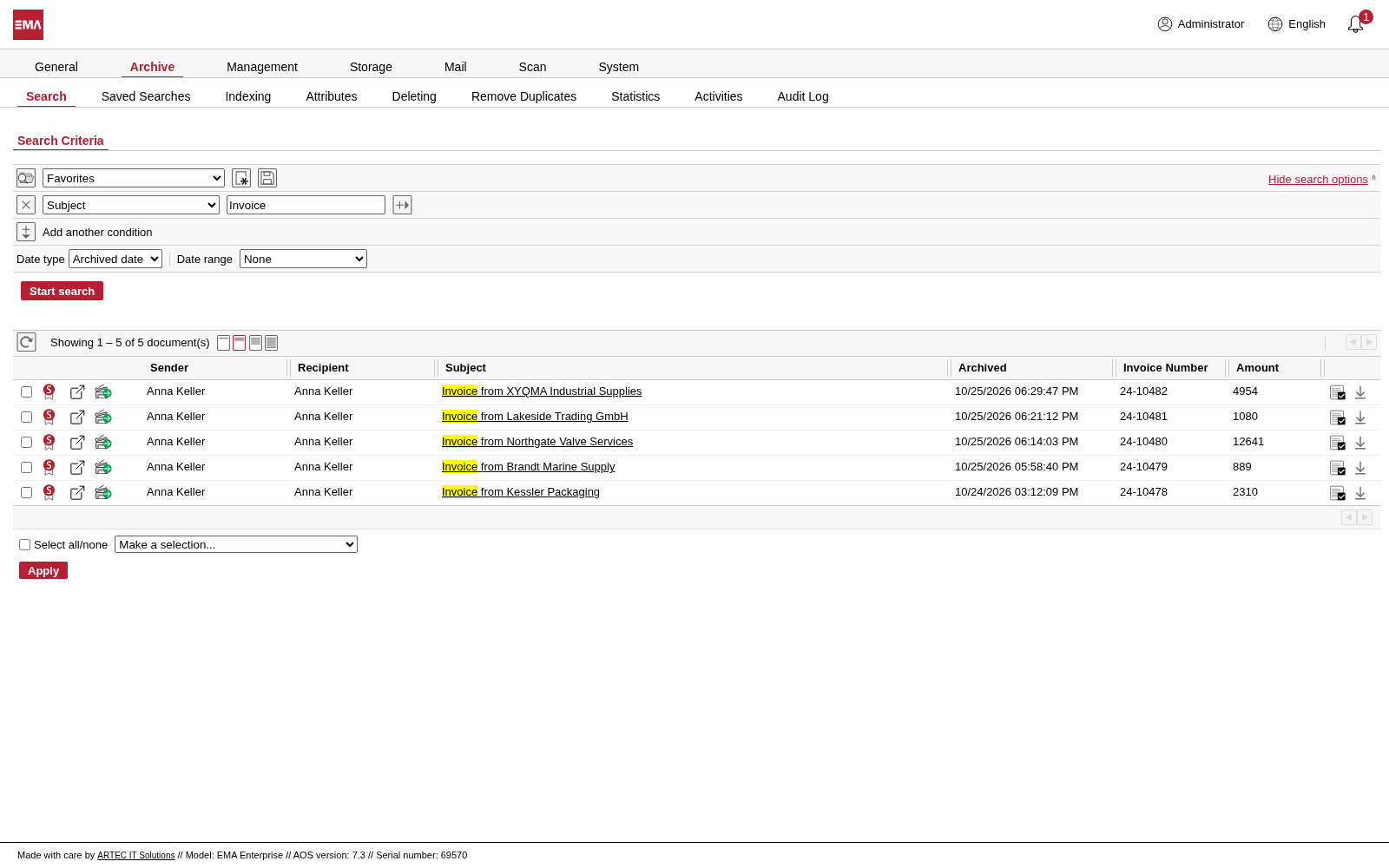
Search the scans and their contents
Scanned invoices sit in the same archive as your email and all of your other documents. Search broadly across everything or drill down, by subject or by an attribute such as the invoice number, and the amount shows up in the list.
Open more than just the scan
The PDF opens in the viewer with its attributes beside it, so you get more than the scan. For each attribute you can set an optional grace period, counted in days after archiving, in which users can still add or correct a value. After that it is locked, or you can lock it down from the start.
Questions about EMA Scan
What does a PC need to run EMA Scan Client?
Windows 10 (version 1809 or later) or Windows 11 on a 64-bit PC that can reach your EMA. The installer sets it up for every user of the PC. A scanner is optional: users can import PDFs and pictures instead.
How is EMA Scan licensed?
EMA Scan is a module of your EMA licence, not a licence on each PC. Once it is switched on in EMA, the client checks the licence when it starts, so there is no key to install on every desk.
Which languages can the text recognition read?
On-device OCR reads more than 100 languages, several of them on one page if needed, and your admin chooses which ones are installed on the PCs. Azure Document Intelligence and AI models that read images need no language files at all and handle mixed languages well.
Which languages is the app itself in?
English, German, Spanish, French, Italian, Japanese, Dutch, Polish, Russian and Czech. EMA Scan Client follows the display language of Windows.
Do we need special separator sheets?
Any page whose barcode holds the separator text will do. EMA Scan Client prints a ready-made QR separator sheet, or you set the text to match the sheets you already use, in QR, Code 128, Code 39, EAN or UPC. Workflows can also split the stack at blank pages or at a word on the page.
What happens to the page images on the PC?
They stay in the user's own folder while they work and are deleted when the app closes. The PDF that goes to EMA is built for each send and removed afterwards. With on-device OCR, no page ever leaves the PC until it is in your archive.
Can the mailroom scan for other departments?
Yes. A user sends each document to any archive delegated to them, accounts payable for example, and EMA can email the receiver that a new document has arrived.
Can we make sure the details are filled in correctly?
Yes. Each field follows the rules of its attribute in EMA: patterns, choice lists, allowed tags and number ranges. A workflow can make fields required and set how certain a value must be. Nothing is sent until every document passes, and anything doubtful waits for a person to check it.
Can scans that already arrived by email become searchable?
Yes. Global Text Recognition reads the text in images and in PDFs without text in archived email and EMA File documents, as EMA indexes them. A scanned letter or a photographed receipt is then found by the words on it. Documents archived earlier are included after the index is rebuilt.

In 10 minutes you know if we fit.
Book a demo. We start with the honest version: what EMA does, what it does not, and whether it suits your company. If it does, we spend another twenty minutes on the details.